Not just a promise.
Put it in your hands.
A working app. A real activation. An independent service. Experience authentication and transaction approval on your own phone.
Start with the appNo bank account or formal identity verification required for the demo.
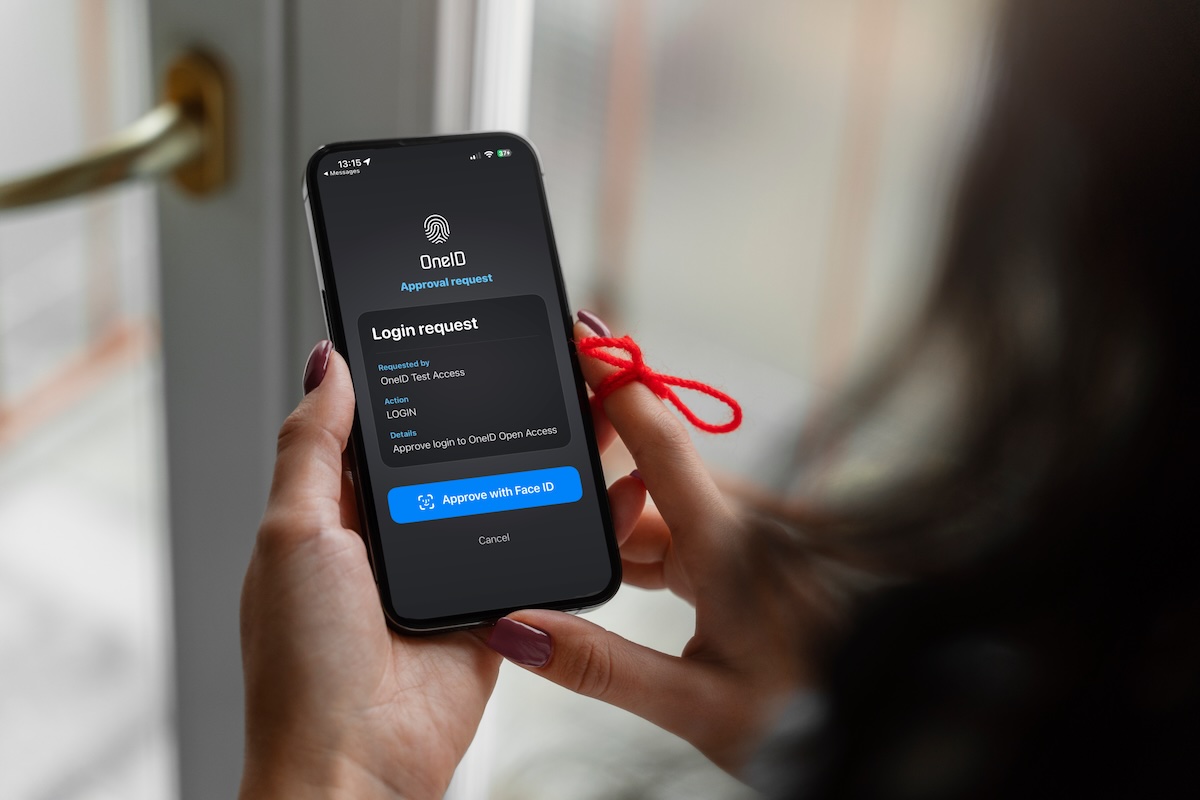
Your phone.
Your OneID.
Use the OneID application—not a separate demo app. Have your phone ready; a second screen is useful for scanning the activation and login QR codes.
Get the OneID app
The public Apple listing is OneID by Kostadin Gurcilov and links back to oneid.medialab.io.

Scan the code to install OneID, or open the listing directly on your iPhone.
Download on the App Store (opens in a new tab)The existing website’s Google Play link opens the general store, not a verified OneID app listing. We cannot currently provide a verified Android download destination.
Request the Android linkMake the connection.
Create a demo identity and activate it on your phone. When activation is complete, use the Return to Try OneID button to continue.
- Open the activation portal on a second screen and scan its QR code with OneID.
- Follow the portal and app instructions. The demo allows fictional identity information; no formal identity verification is performed.
- Remember the unique email and Personal ID you choose. You will use these identifiers for the demo tests.
- Complete activation in the app, then return to this guide.
Demo activation is not bank onboarding or proof of a verified legal identity.
Go from request
to recognition.
The Demo Service is an independent relying-party application integrated with OneID. It sends real authentication requests and receives verified results.
Choose a login in the Demo Service
Scan the displayed login QR code with OneID. Review and confirm on your phone, then check the result in the service.
Select your identifier type and enter the matching value from activation. Send the request, then review and confirm it on your activated phone.
Open the demo on your phone and use its mobile login option. The generated link opens the installed OneID app for confirmation.
Approve the action.
Not just the login.
Return to the same Demo Service and choose “Approve Action.” This demonstrates approval of a specific operation, rather than authentication alone.
- Choose “Approve Action” and complete the request fields presented by the service. Use demonstration data only.
- Review the requesting service and operation details on your phone before confirming.
- Confirm in OneID and return to the service to inspect the approval result.
The activated device signs the request and OneID verifies the response. This is not a claim of qualified electronic signing, bank onboarding or live payment execution.
The simplicity is on the surface.
The architecture is underneath.
Explore the technology External services remain operated by OneID. Original trial instructions